 Your next read, within reach.
Send books from your phone to Kindle.
No cable. No Amazon account. No cloud upload.
Import a book from Files, cloud storage or another app. Connect to the same Wi-Fi to send it to your Kindle.
Free download with optional in-app purchases.
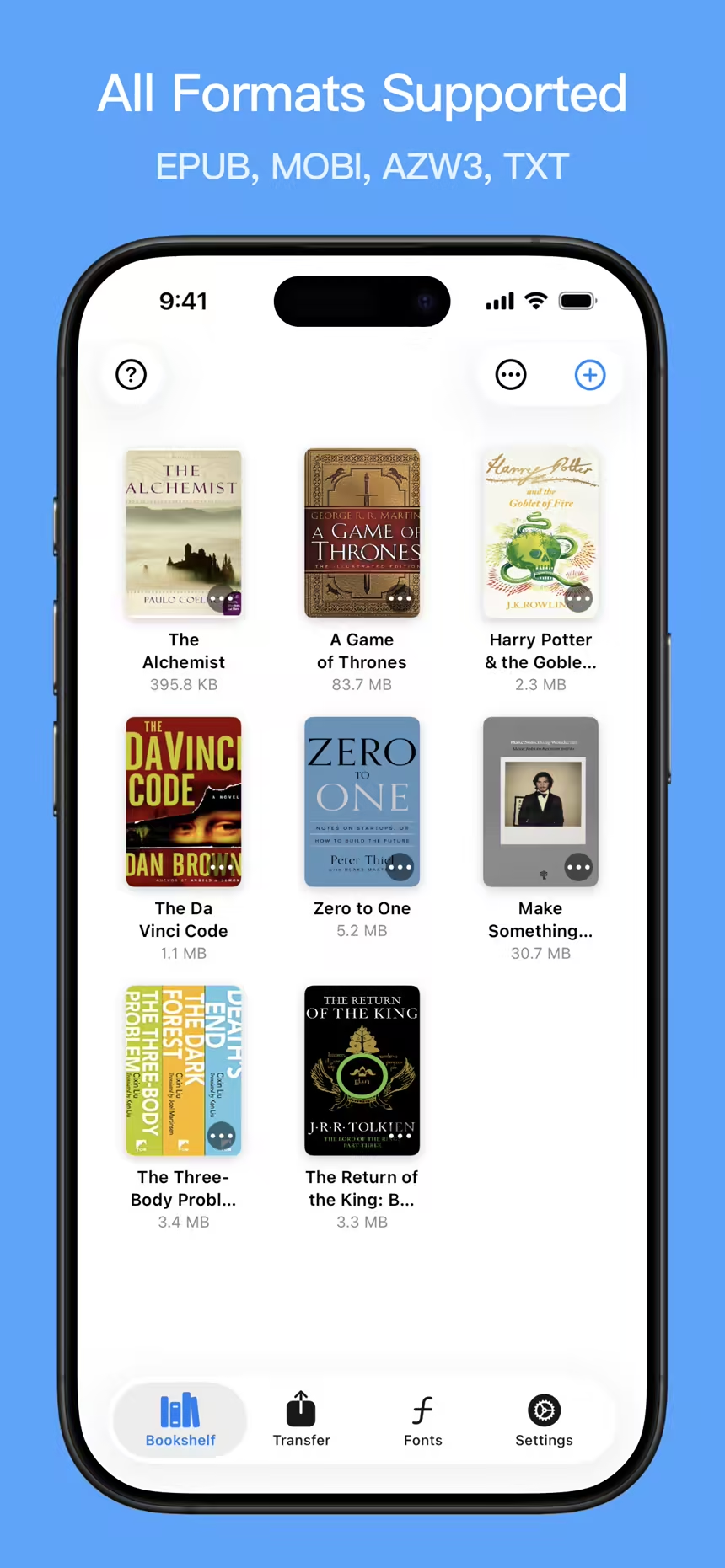
Scan to download on iPhone
What would you like to do?
Find the steps for the book and device you have.
How to Send Books from iPhone to Kindle Without a Computer
Import a book on iPhone or iPad, connect over the same Wi-Fi, and download it in the Kindle browser using QR pairing or a local address.
How to Import Books from Files, Cloud Storage or Messaging Apps
Save an ebook from iCloud Drive, Google Drive, Dropbox or a message to your iPhone, then import it into Bookify before sending it to Kindle.
How to Send EPUB to Kindle: Conversion and Wi-Fi Transfer
Learn how Bookify prepares AZW3 or MOBI from an EPUB on iPhone, then downloads the converted book through the Kindle browser.
Kindle Cannot Open the Transfer Page or Download a Book?
Troubleshoot Bookify Wi-Fi connections, local network permission, QR pairing, missing books and interrupted Kindle downloads.
Popular Ebook Formats
Import EPUB, MOBI, AZW3 and TXT, and prepare a format for Kindle
Import from Anywhere
Share eBooks from Files, cloud storage, or another app directly into Bookify.
iPhone, iPad and Mac
Start with a book on your Apple device and transfer it to Kindle on the same Wi-Fi.
Screenshots
See the Kindle workflow before you download.
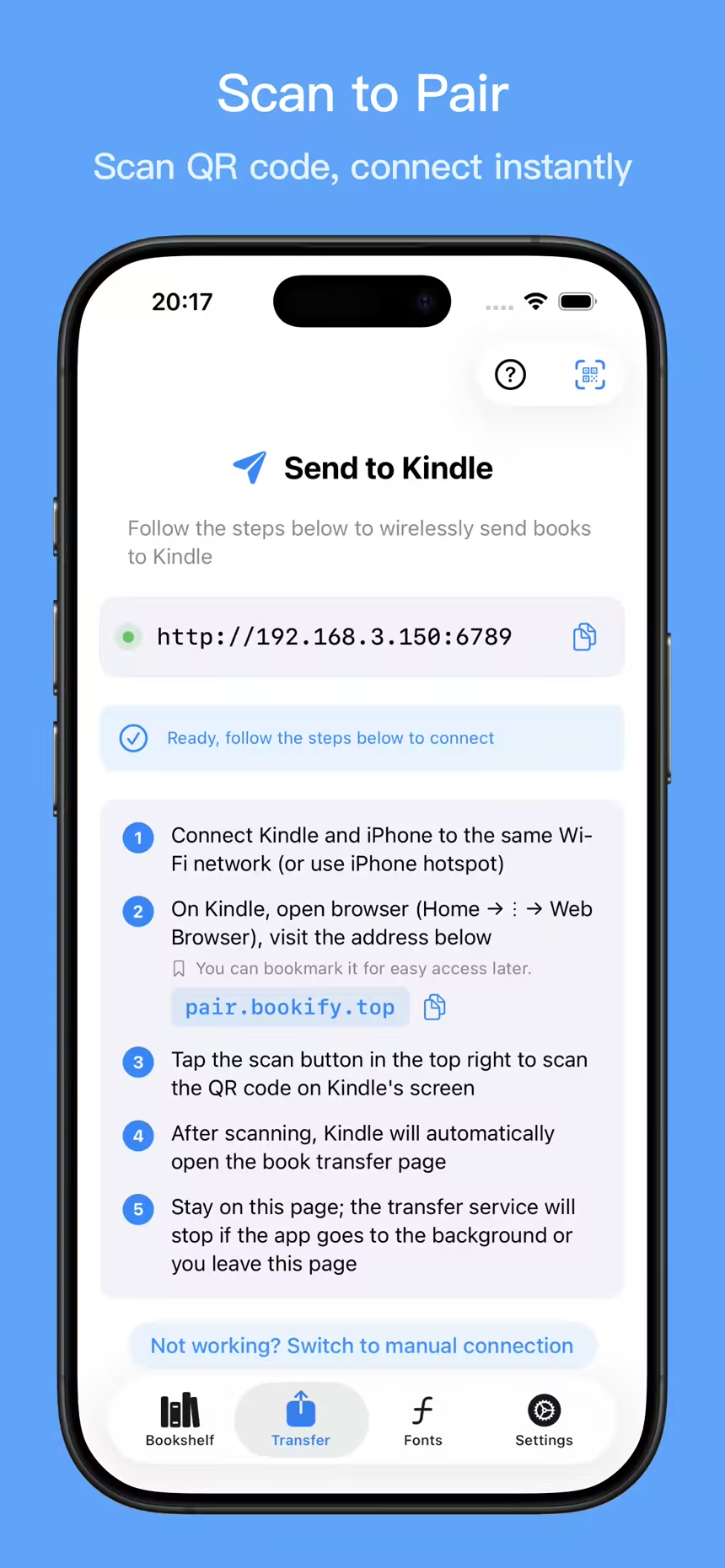
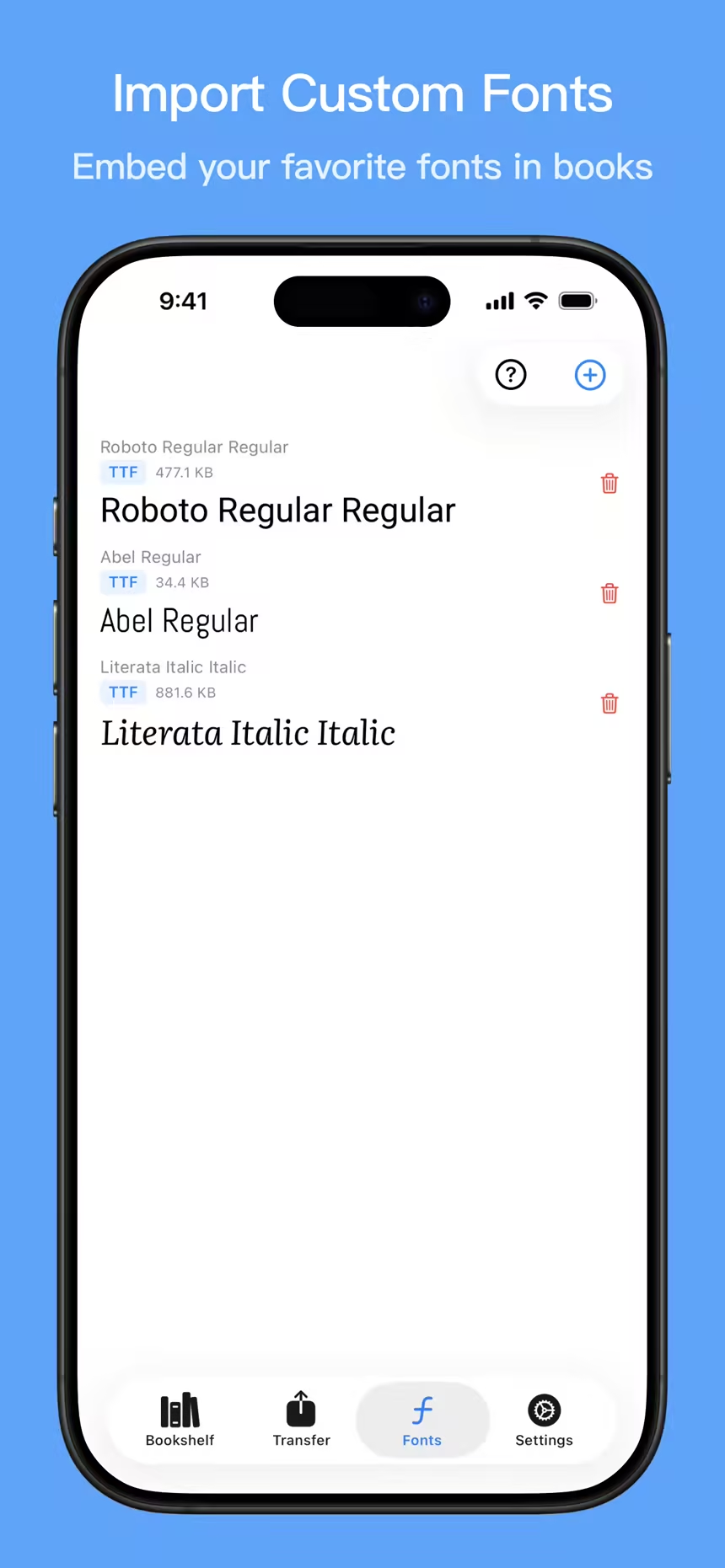
Explore the bookshelf, QR pairing and font library. Follow the guides above for the complete transfer steps.
Features
Prepare books before sending them to Kindle.
Edit covers, titles, and author names, choose the right format, and embed custom fonts before transfer.
Polish Books Before Sending
Fix covers, titles, and author info, then embed custom fonts for a better reading experience on Kindle.
Local Wi-Fi Transfer
Every transfer stays on your local network. Nothing is uploaded to the cloud.
No Amazon Account Needed
Skip Amazon Send to Kindle for local transfers. Works with supported DRM-free eBooks stored on your device.
Popular Ebook Formats
Import EPUB, MOBI, AZW3 and TXT, and prepare a format for Kindle
Import from Anywhere
Share eBooks from Files, cloud storage, or another app directly into Bookify.
iPhone, iPad and Mac
Start with a book on your Apple device and transfer it to Kindle on the same Wi-Fi.
How It Works
4 simple steps to transfer books to Kindle
Import a DRM-free book, start local transfer, then download it from the Kindle browser on the same Wi-Fi network.
Choose Kindle
Choose Kindle in settings before importing.
Import your book
Import from Files or another app and wait for processing. Cover and font edits are optional.
Start Transfer
Open Transfer, follow the pairing instructions and keep that screen open.
Download on Kindle
Open the transfer page in the Kindle browser, download the book and open it from the library.
Bookify vs. Amazon Send to Kindle
Bookify and Amazon Send to Kindle solve different problems. Bookify focuses on direct local delivery, while Amazon focuses on cloud sync.
Compare transfer methods and requirements →| Criteria | Bookify | Amazon Send to Kindle |
|---|---|---|
| Transfer path | Local Wi-Fi transfer from your device to Kindle | Upload to Amazon cloud, then sync to Kindle |
| Amazon account | Not required | Required |
| File handling | Files are transferred over your local network | Files are uploaded to Amazon before delivery |
| Best for | Fast sideloading of DRM-free ebooks to one Kindle | Cloud sync across multiple Kindle devices and apps |
Frequently asked questions
Can Bookify send EPUB files to Kindle without Amazon Send to Kindle?
Yes. Bookify converts DRM-free EPUB imports to AZW3 or MOBI in Kindle mode, then lets the Kindle browser download the prepared book over local Wi-Fi. The EPUB source is not copied unchanged to Kindle.
Does Bookify upload my ebooks to the cloud?
Normal book transfers stay on your local Wi-Fi network. If you choose to submit a problem book through this website, that file is uploaded separately for troubleshooting, as explained on the submission page.
Which ebook formats work with Bookify?
Bookify imports EPUB, MOBI, AZW3 and TXT. Choose Kindle before importing; EPUB files are prepared as AZW3 or MOBI for download through the Kindle browser.
Do my Kindle and Apple device need to be on the same Wi-Fi network?
Yes. Bookify uses a local transfer workflow, so your Kindle and your iPhone, iPad, or Mac need to be connected to the same Wi-Fi network.
Can Bookify still work on older Kindles that lose Send to Kindle support?
Sometimes. Bookify does not depend on Amazon Send to Kindle, but the Kindle still needs to connect to Wi-Fi, open its browser, and reach the local address shown by Bookify. If browser or local network access is unavailable, USB transfer is usually the safer option.
Can I edit covers, titles, authors, or fonts before sending?
Yes. Bookify lets you clean up covers and metadata before transfer, and it can embed custom TTF or OTF fonts into supported ebooks.
When should I still use Amazon Send to Kindle?
Use Amazon Send to Kindle when cloud sync across multiple Kindle devices or Kindle apps matters more to you than local private transfer.
Your Kindle. Your books. Your own workflow.
No cables. No cloud. Just cleaner, better-looking books on Kindle.
Transfer DRM-free books locally and prepare their covers, metadata, and fonts before sending.